
Text Merge
A text merge combines changes from two versions of a file into a single editable result. A conflict occurs when two changes are incompatible and a decision is required.
Layout
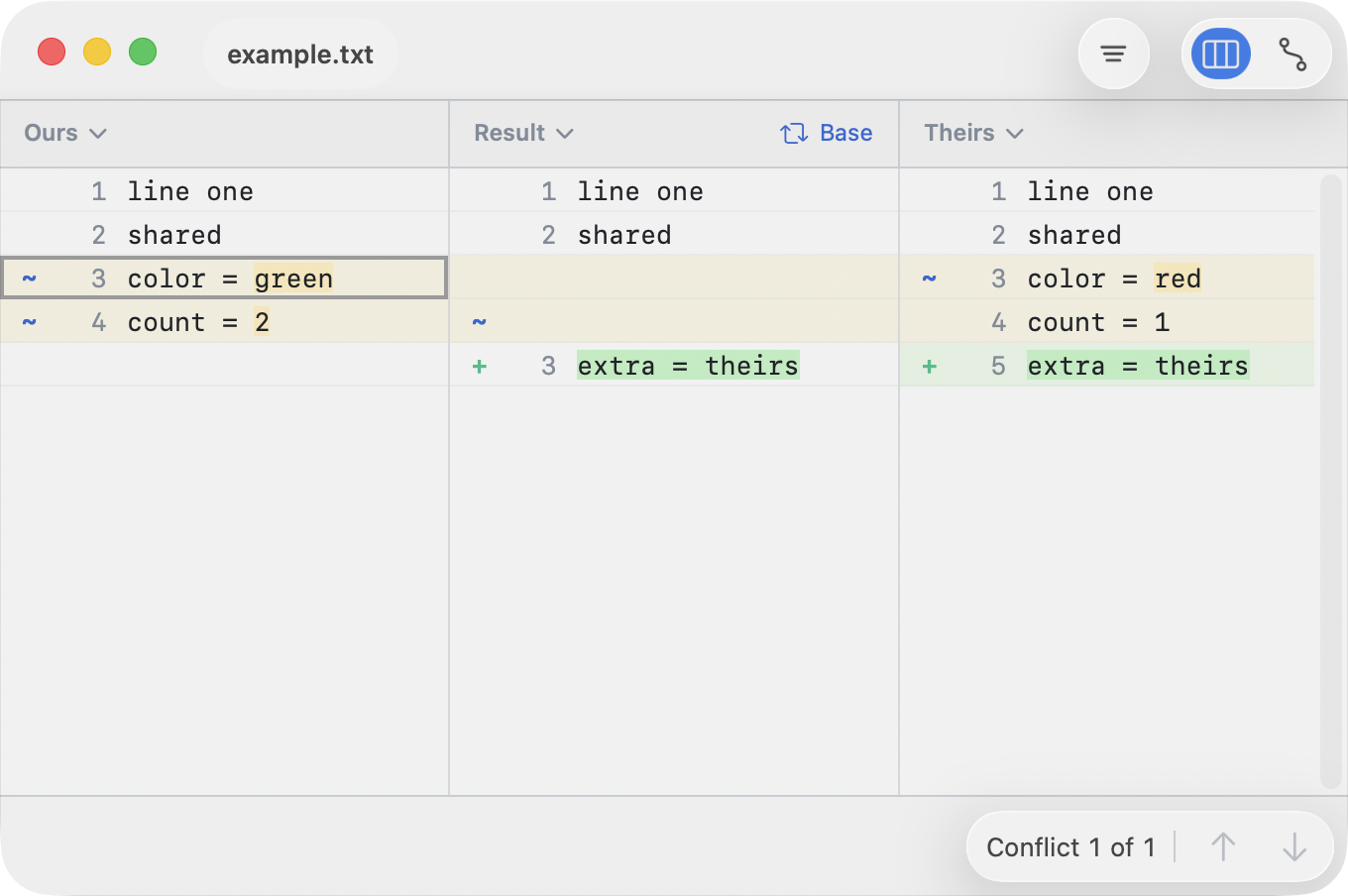
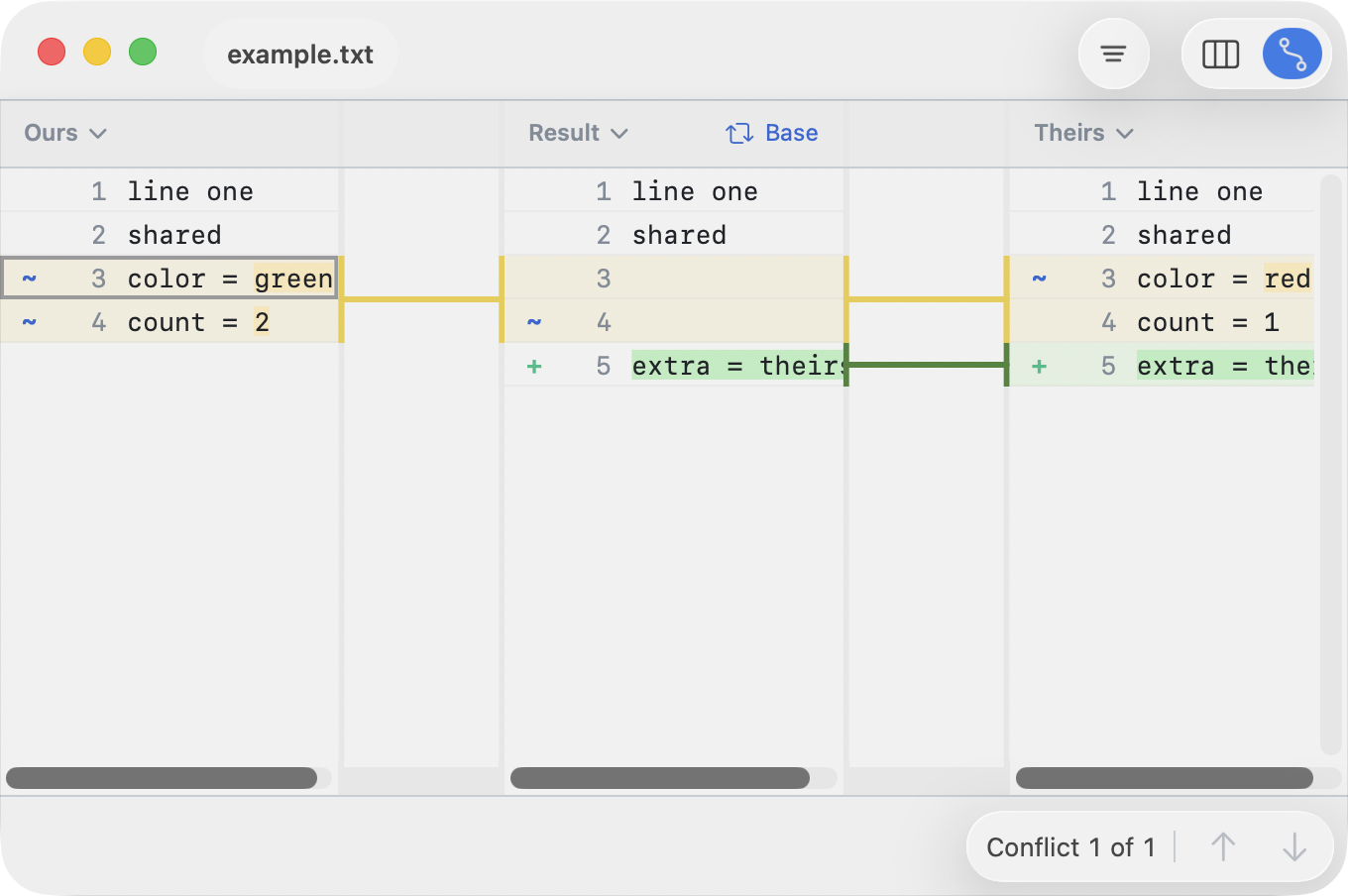
This screen shows three versions of the same file.
- Left pane is your version — local changes.
- Center pane is the result — this is the only editable pane.
- Right pane is the incoming version — remote changes.
There are two merge layouts:
- Merge with Insertion Gaps keeps the three panes aligned with explicit gap rows.
- Merge with Connectors uses connector gutters to show how related changes map across panes.
To switch between them use the View menu or the segmented control (top right).
Base
There is also a fourth version: the base, which is the original version both sides started from. This matches the three-way merge model from Git:
Local → Base ← Remote
          ↓
        Result
In ABDiff, the center pane can switch between Result and Base to help you understand what changed.
What is a Conflict?
A conflict happens when both sides modify the same lines differently. For example, the original value was blue, but now one side says green, and the other says red. Git cannot determine which change is correct, so it requires manual resolution.

This happens when two people edit the same lines concurrently. If the changes don’t overlap, Git merges them automatically. If they do, you have to resolve the conflict manually.
Resolving a Conflict
If you configured Git, ABDiff will launch when Git finds a conflict. The result area is left unresolved, and your task is to define its contents. You have three options:
- Resolve using the local version
- Resolve using the incoming version
- Create your own result
- Edit the line selected (press ↩︎ or double-click)
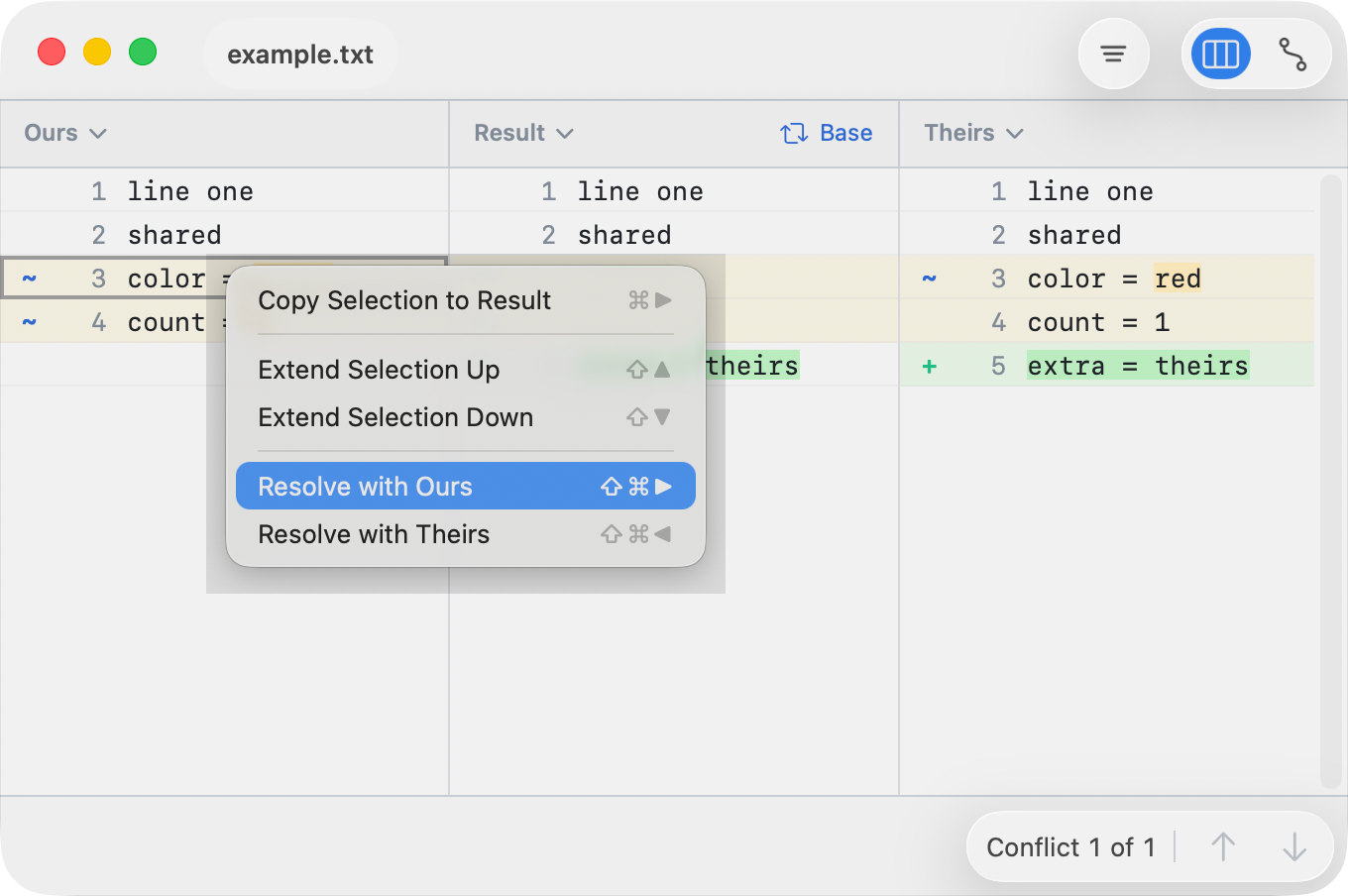
- Or copy lines from either side: right click ▸ Copy Selection to Result (⌘→/⌘←)
Tips:
- Extend the selection (⇧↑/⇧↓) to copy multiple lines at once.
- Use ⌘z to undo any change
Marking Resolved
When you’re done, save the file (File ▸ Save or ⌘S). This tells Git the conflict has been resolved.
Or, if you don’t want to resolve the conflict, just close the file without saving.
Edit and Navigation
Navigation
| Action | Shortcut |
|---|---|
| Previous / next row | ↑ / ↓ |
| Previous / next pane | ← / → |
| Jump to first / last row | ⌘↑ / ⌘↓ |
| Previous change / next change | ⌥↑ / ⌥↓ |
| Previous / next hunk | ⌥↑ / ⌥↓ |
| Switch to other pane | ⇥ |
Copy
| Action | Shortcut |
|---|---|
| Copy Selectioni to Result | ⌘← ⌘→ |
| Extend selection Up / Down | ⇧↑ / ⇧↓ |
| Resolve with Ours / Theirs | ⇧⌘→ / ⇧⌘← |
A selected line is shown with a gray rectangle. A hunk is a contiguous conflict/change block. Copy actions are enabled only when they would modify the Result pane and when selection is on a real line. Shift-click on a row also extends the current selection within the same pane.
To copy changes
- Use Copy to copy the current selected lines.
- Use Copy entire hunk to copy the block where the selected line is.
- Right-clicking inside the current selection keeps the selection intact; right-clicking elsewhere selects that row first.
- The row context menu also offers Extend Selection Up / Extend Selection Down when those Shift+Arrow moves are available.
- Use Resolve with on the selected line, either right clicking a line or from the Edit ▸ Resolve with menu.
All copy actions are undoable with ⌘Z.
Editing
| Action | Shortcut |
|---|---|
| Start editing selected Result row | Return |
| Start editing a Result row directly | Double-click row |
| Commit and move to next editable row | Return (while editing) |
| Commit and exit edit mode | Command-Return |
| Cancel current row buffer and exit edit mode | Esc or Command-. |
Editing can also be started by double-clicking a row. All edit actions are undoable with ⌘Z.
View Options
Text merge exposes options that change how the comparison is computed or displayed. These options are available in the Funnel button (top right).
- Ignore Patterns help suppress noise (such as IDs or timestamps) during comparison.
- JSON Normalization converts the input to a canonical form to make the comparison semantically meaningful. Saving a normalized file will rewrite the input file using the normalized format.